A character's gear
In the first mission we simply duplicated the characters: vanilla roles come dressed and armed. When you want a kit of your own — inherit from the faction’s base character and put the gear together from nothing, or fix up a duplicated one — that is what the ECHO Loadout Editor is for, a World Editor tool that comes with the mod. Since 1.6.0.
It edits the whole character prefab: what is worn, what is carried, what sits in the pockets and the backpack. By hand the same thing would mean BaseLoadoutManagerComponent and its nested slot configs.
Opening the tool
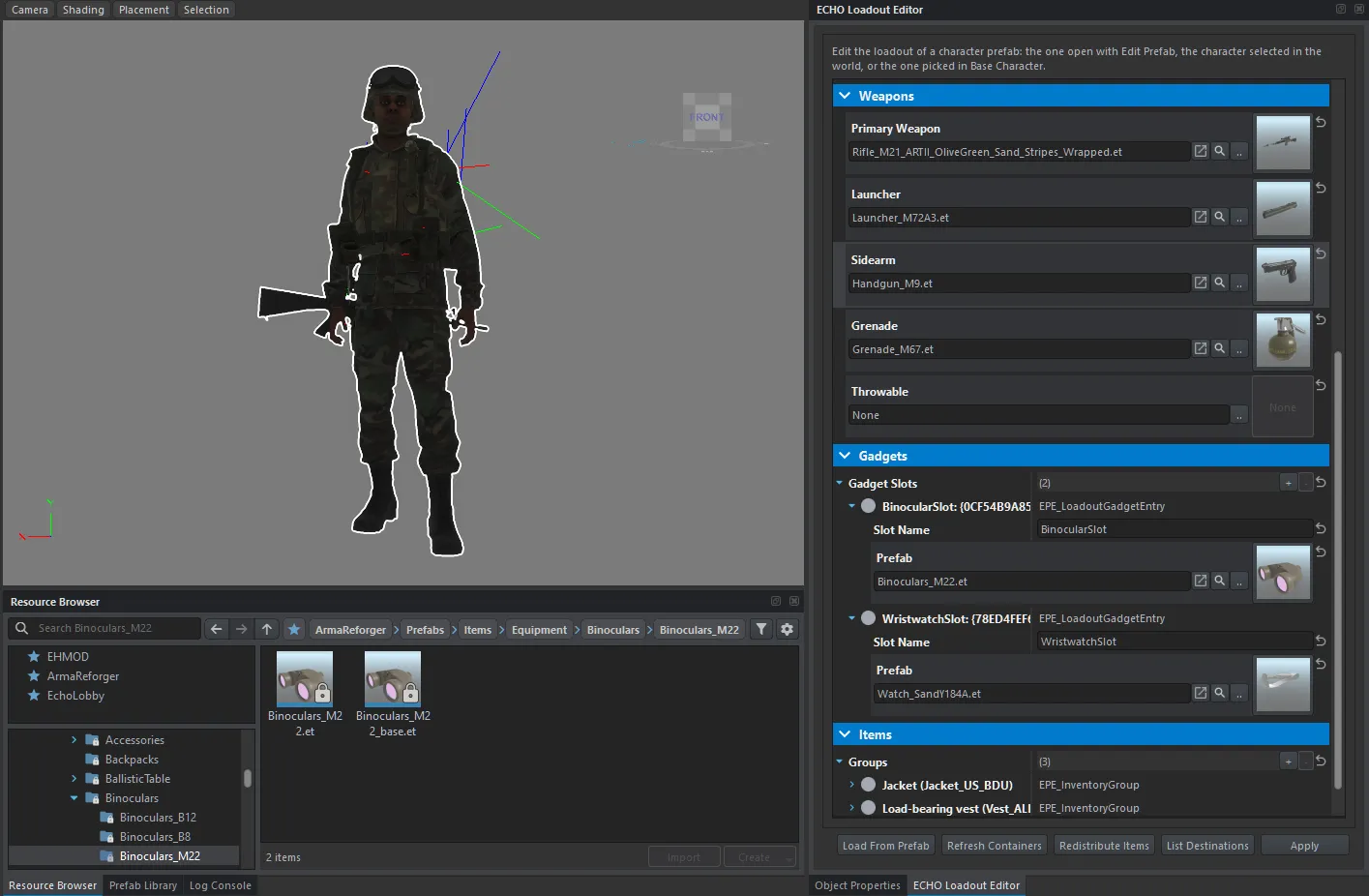
Section titled “Opening the tool”Open the character prefab with Edit Prefab and press the t-shirt button in the World Editor toolbar. The panel opens on the right, next to Object Properties.

The tool always works on a single prefab and picks it up in one of three ways:
- the prefab open with Edit Prefab — the usual path;
- the character selected in the world;
- a prefab picked by hand in the Base Character field — then press Load From Prefab.
The fields fill up with whatever the character has right now.
Clothing
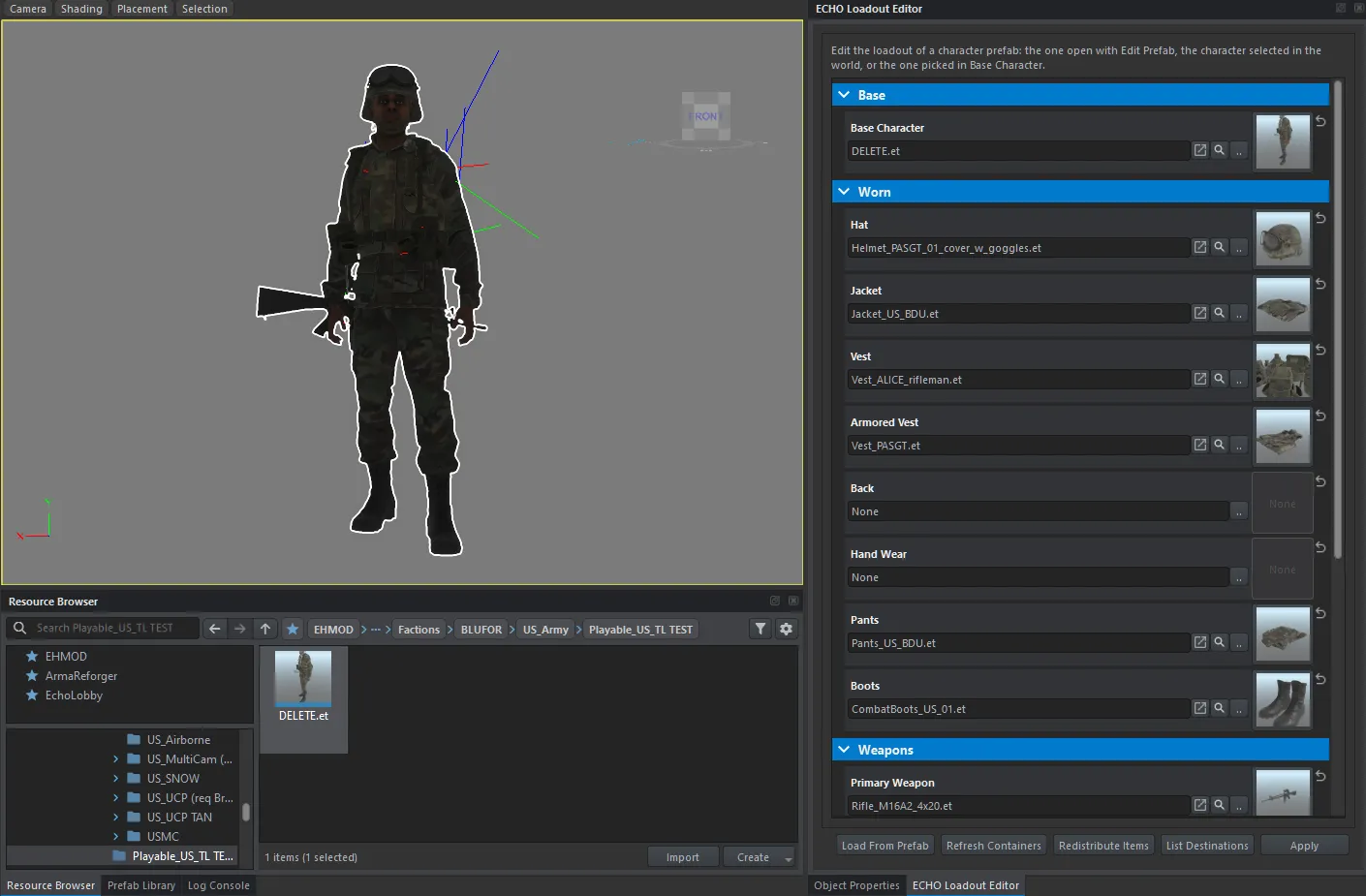
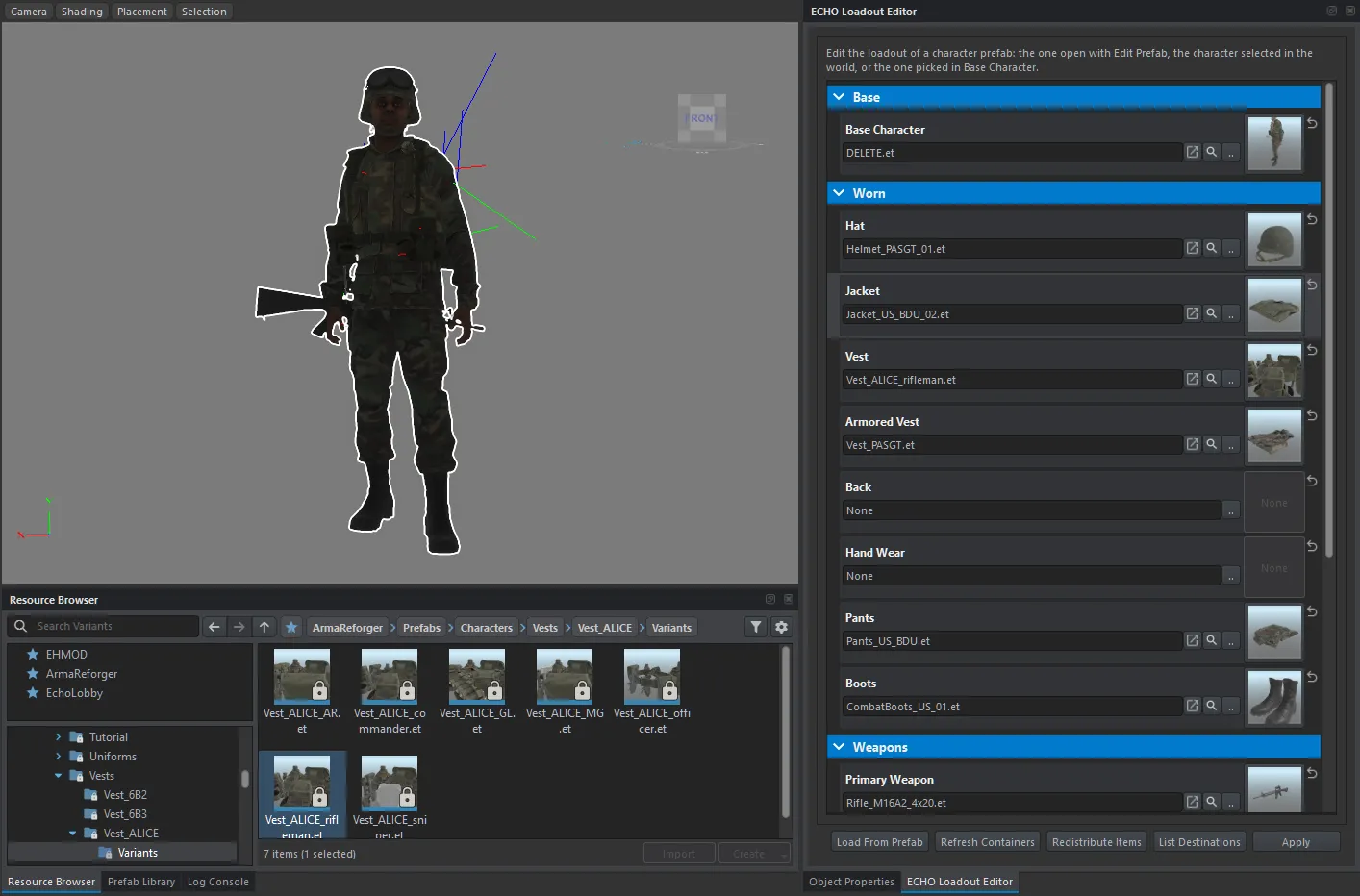
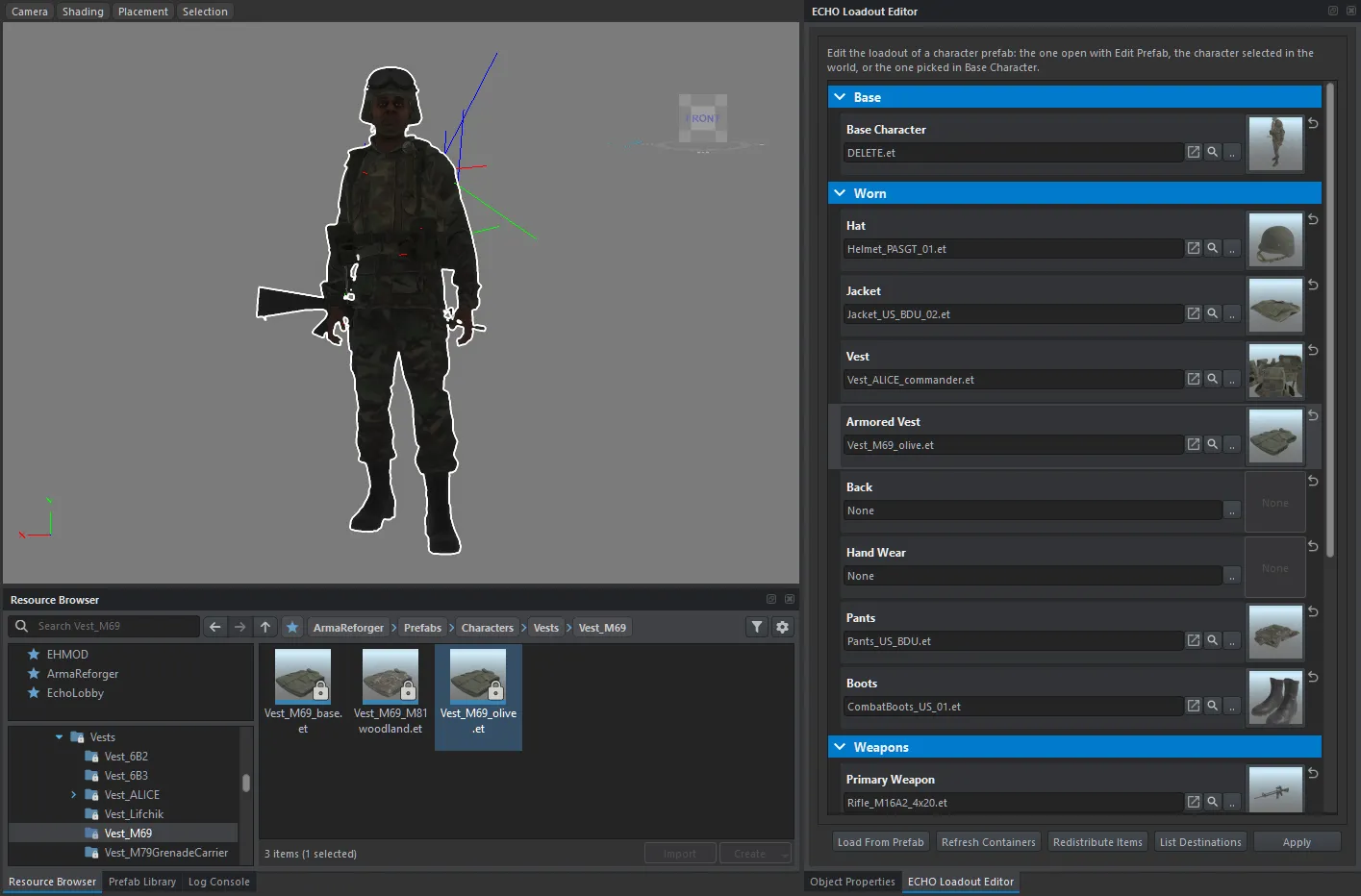
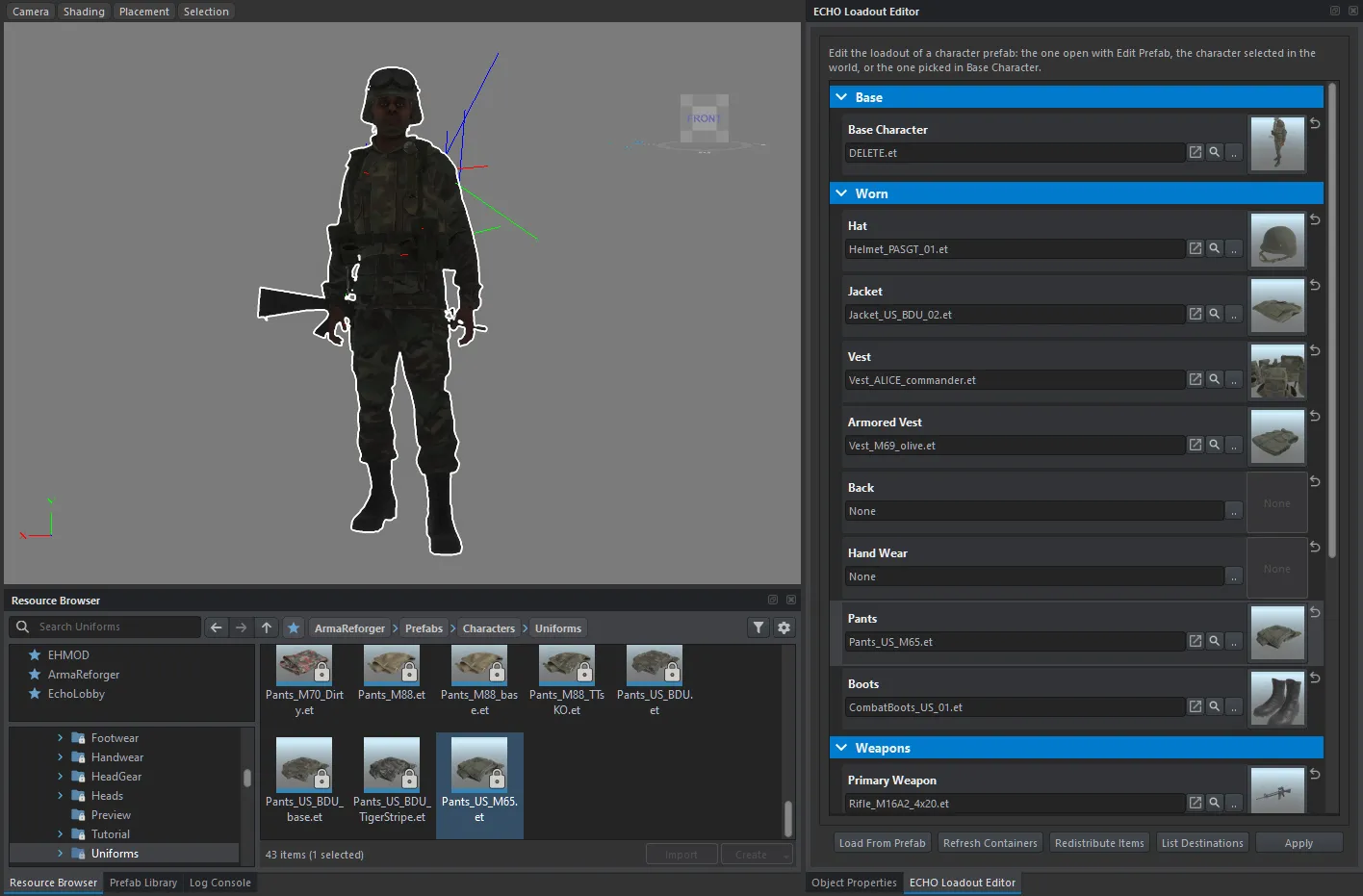
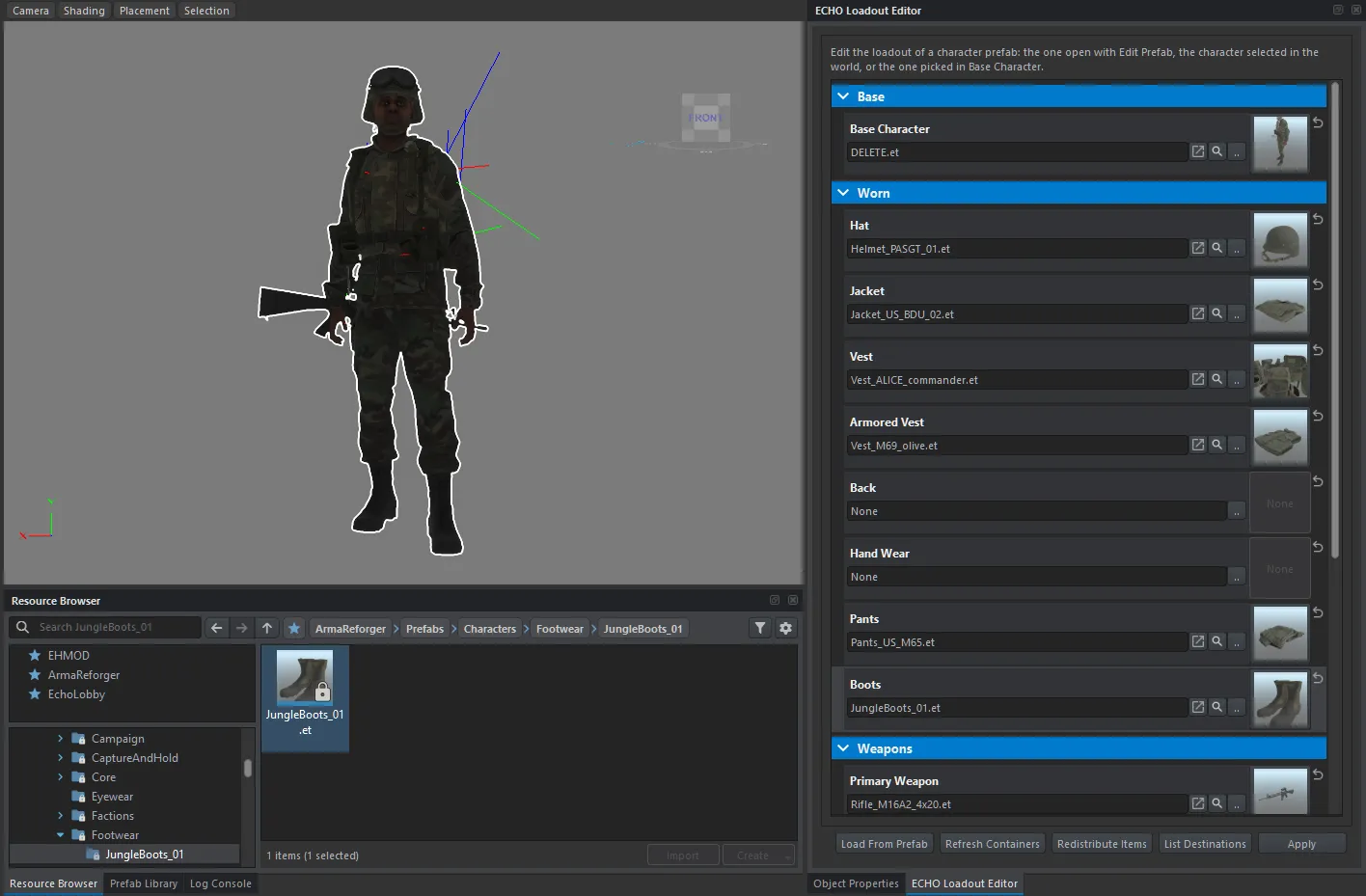
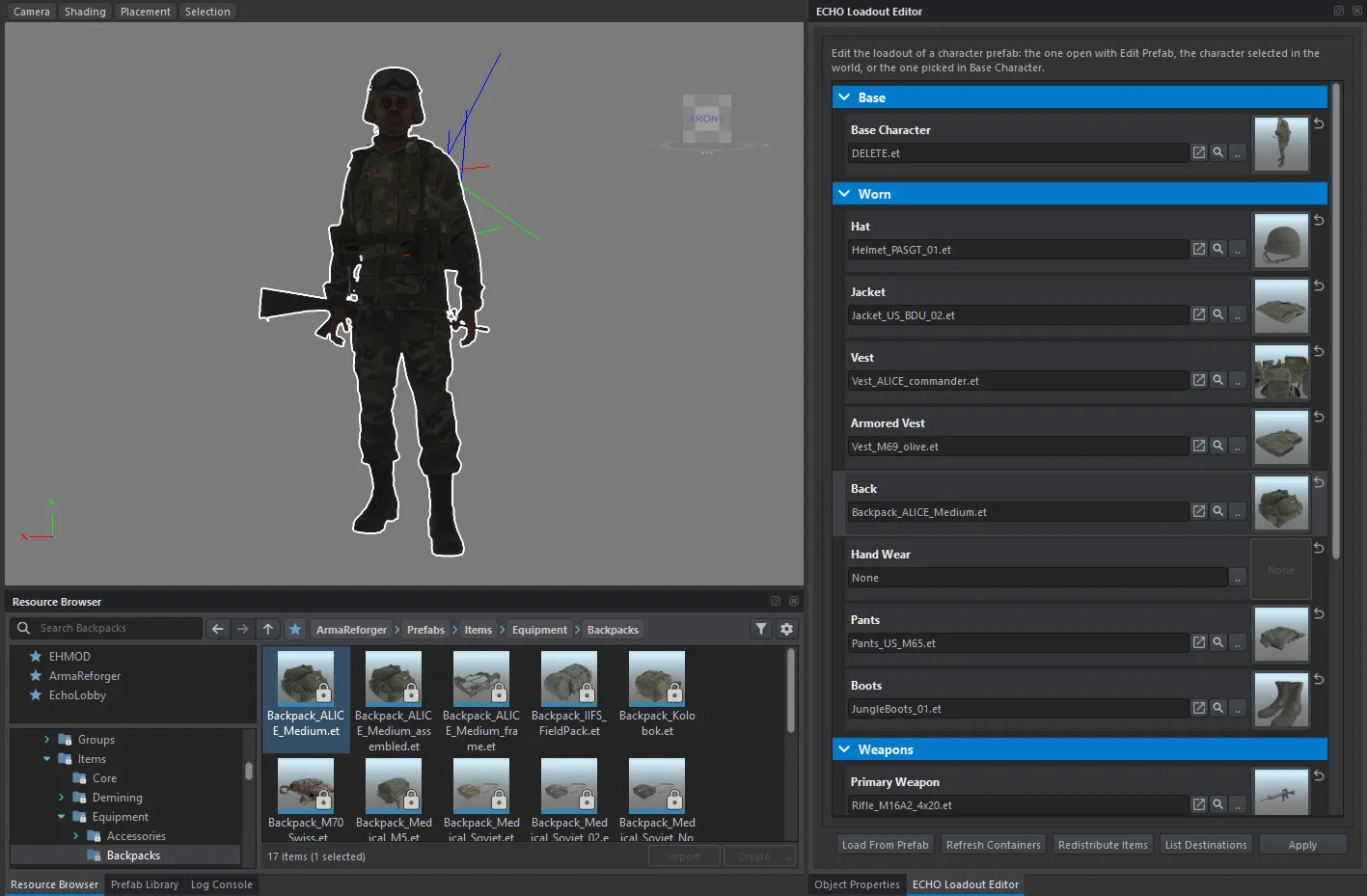
Section titled “Clothing”The Worn section, a field per item: Hat, Jacket (or shirt), Vest (the load-bearing one), Armored Vest, Back (the backpack), Hand Wear, Pants, Boots. An empty field means there is no such item.
An item is swapped in one of two ways:
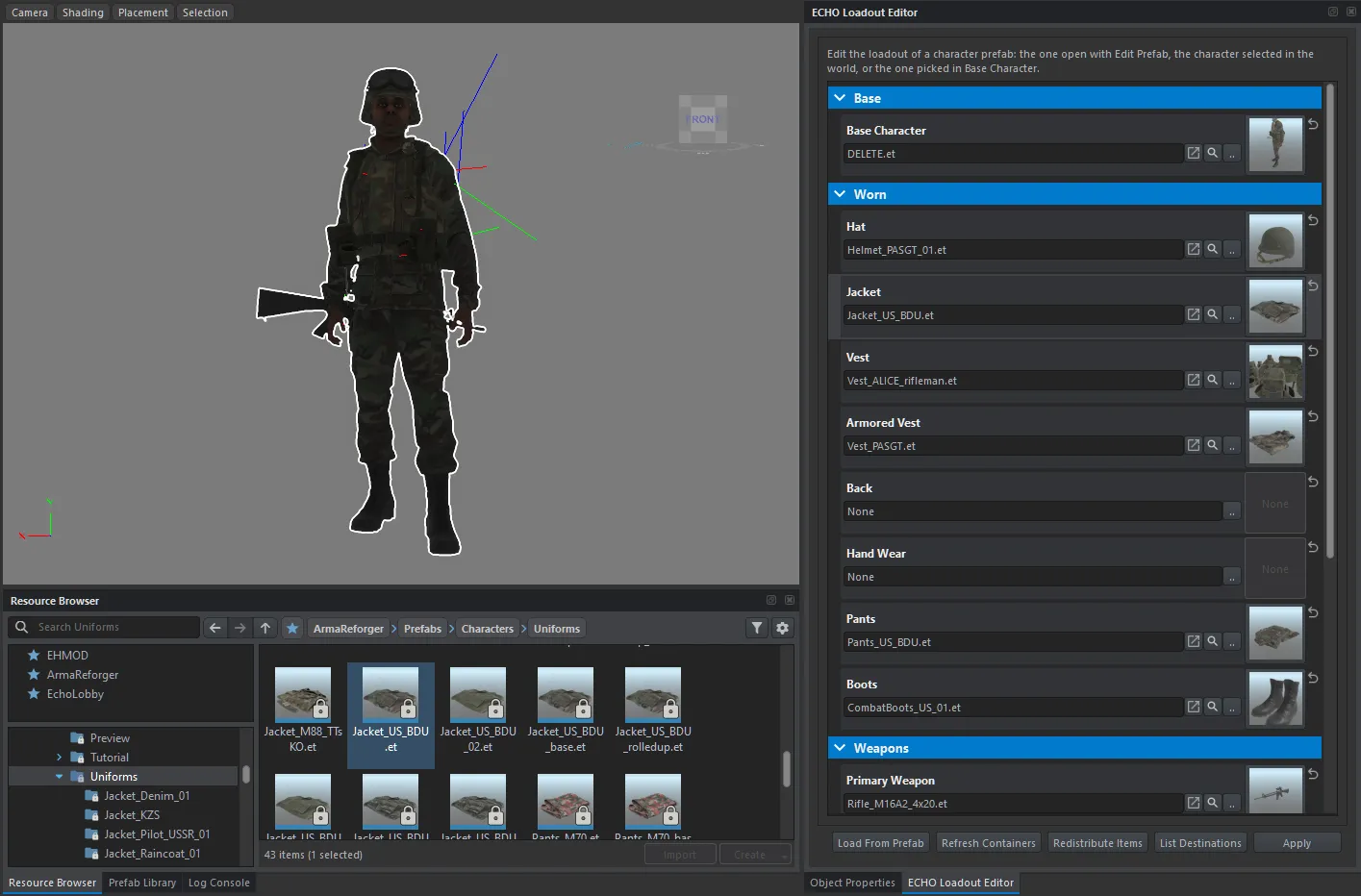
- the magnifying glass next to the field shows the current prefab in the Resource Browser — drag a neighbour from there into the field, another helmet from the same folder, say;
- «…» opens the resource picker with a search, which is easier when you know the name.
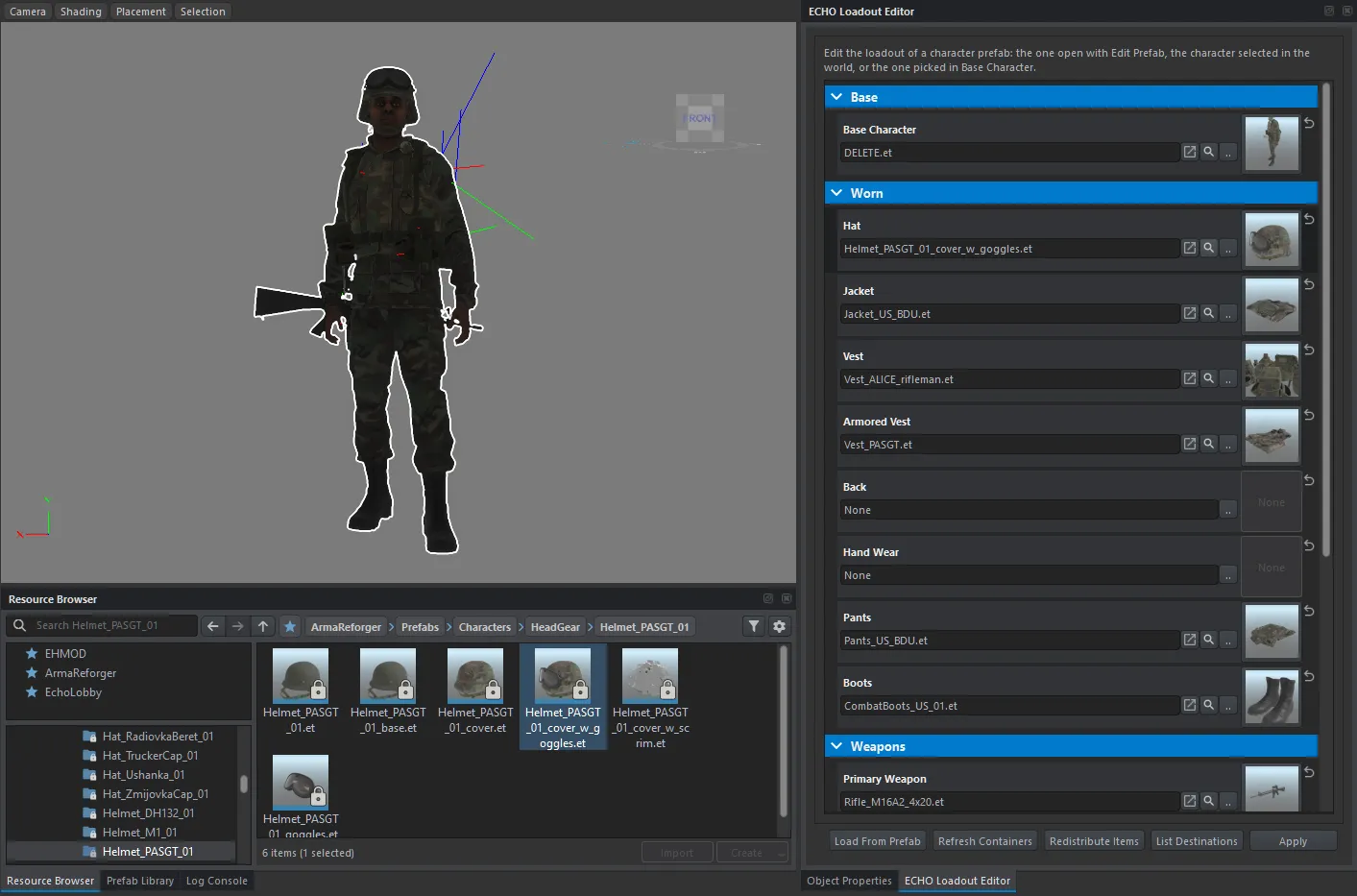
Everything else is swapped the same way.
Weapons
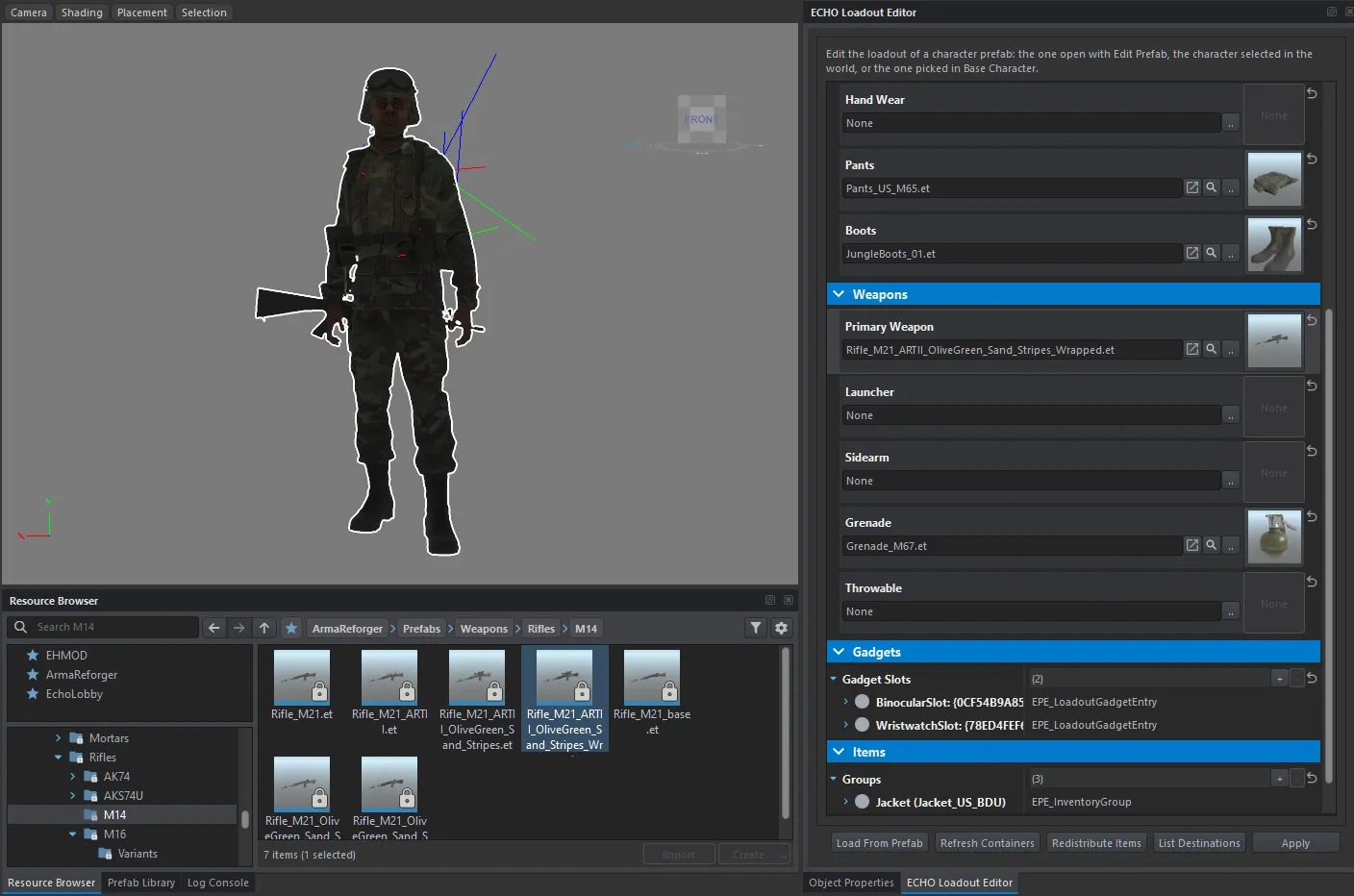
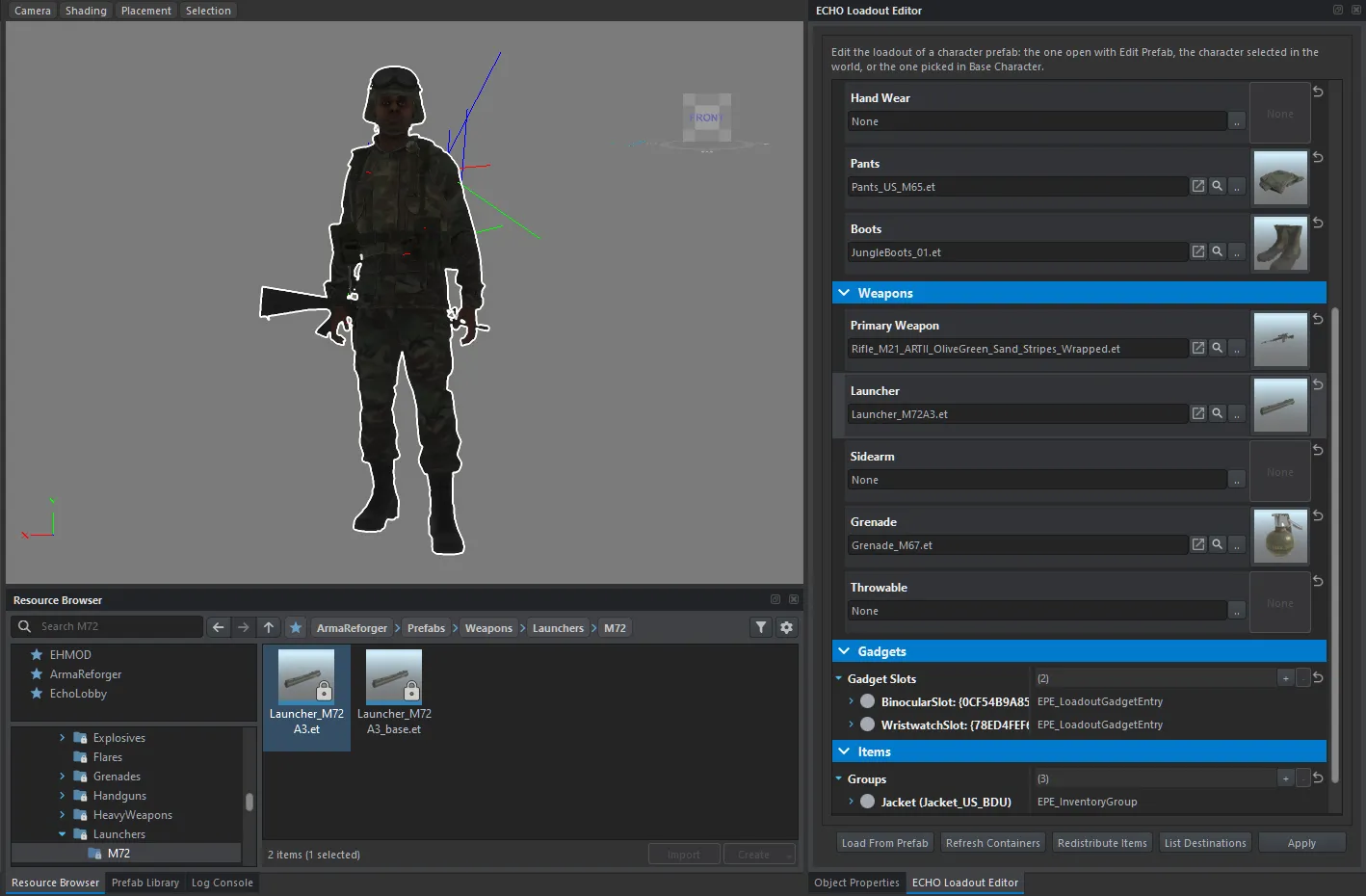
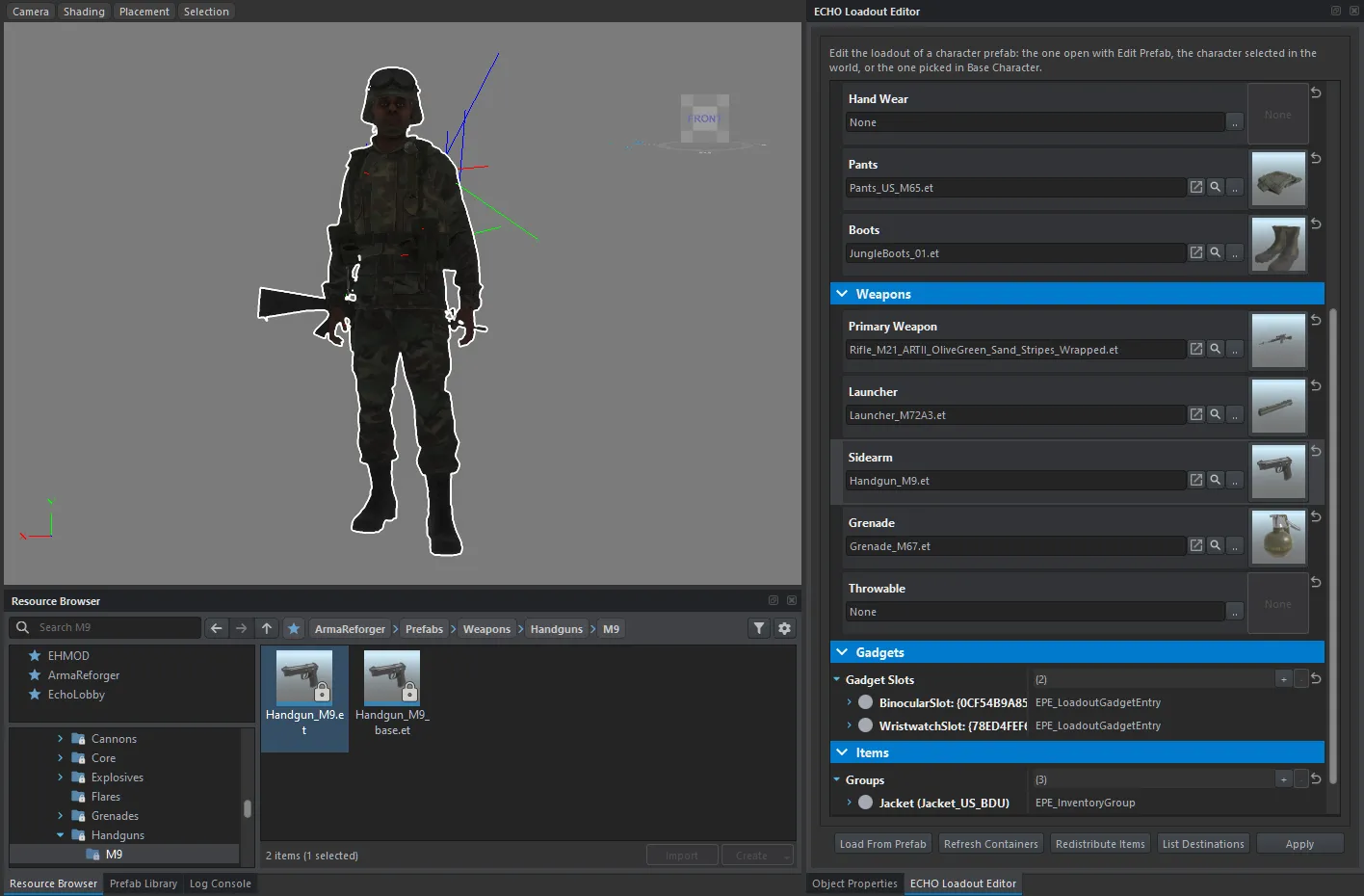
Section titled “Weapons”The Weapons section:
| Field | What it is |
|---|---|
| Primary Weapon | the main weapon, right shoulder |
| Launcher | a launcher or a second long weapon, left shoulder |
| Sidearm | the holstered pistol |
| Grenade | a grenade |
| Throwable | a second thrown item, smoke for example |
Gadgets
Section titled “Gadgets”Gadgets → Gadget Slots — what the character carries on itself rather than in a pocket: binoculars, a wristwatch. A flashlight or a radio does not belong here, those go into Items.
What is in the pockets
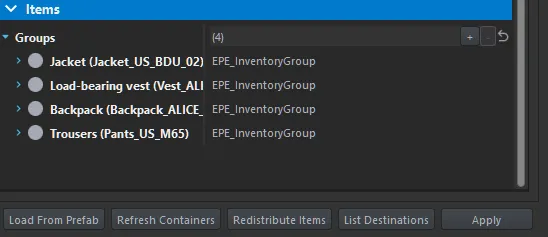
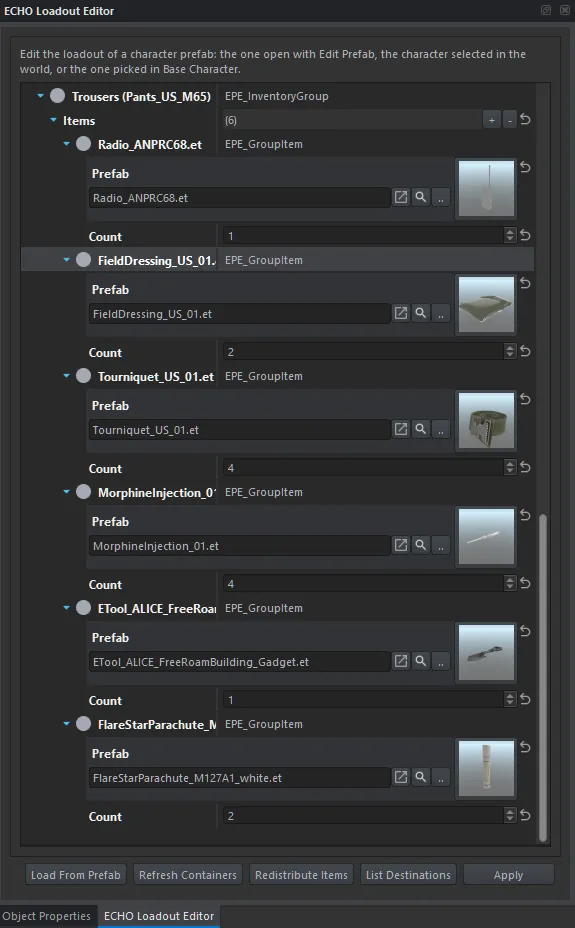
Section titled “What is in the pockets”The Items → Groups section — a group per item with pockets: the jacket, the load-bearing vest, the backpack, the trousers. The groups are built from whatever is selected above in Worn.
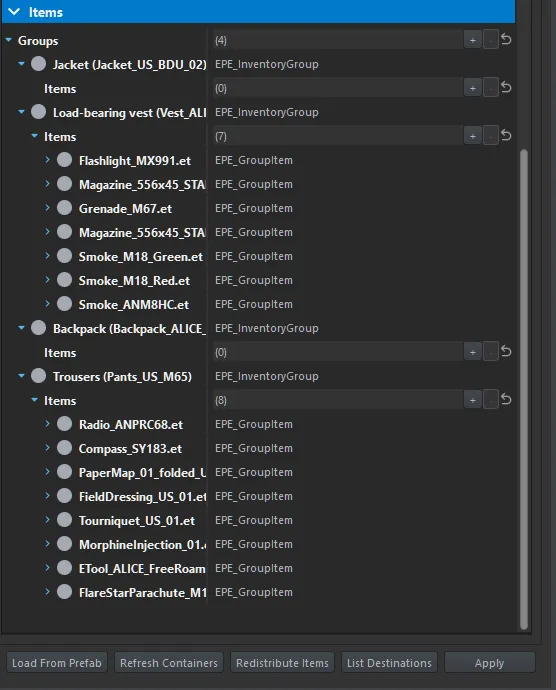
Expand a group and its Items — a row per item, with a prefab and a count.
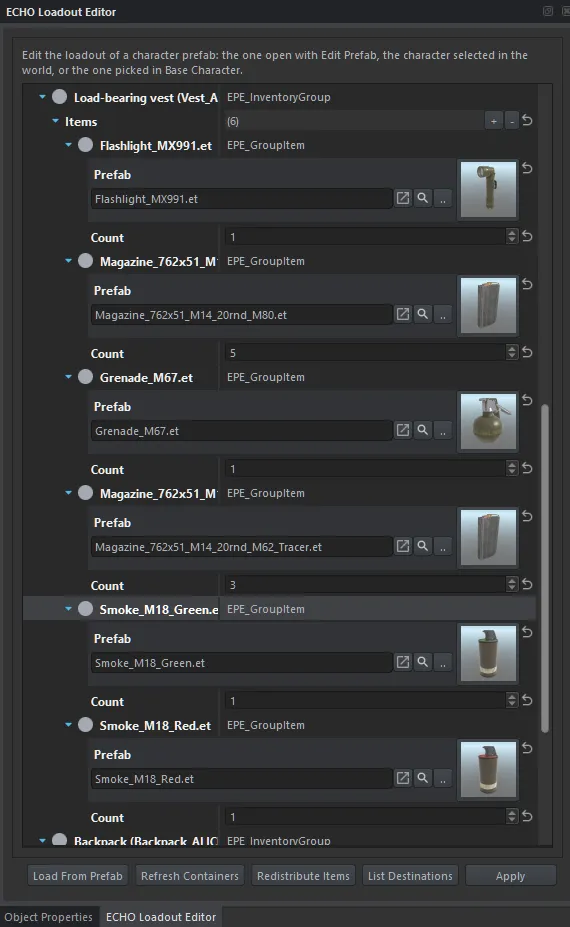
The amount is the Count field, and rows are added and removed with the + and − buttons next to Items.
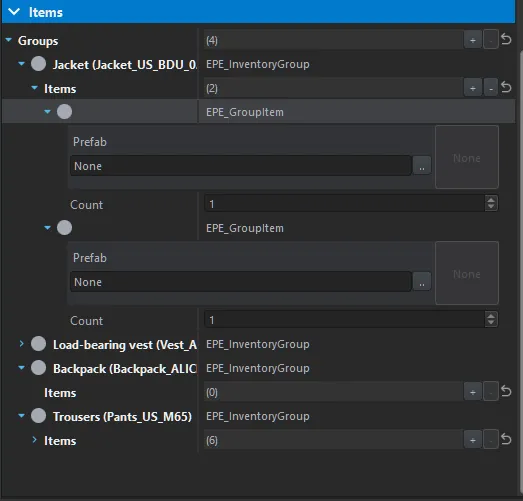
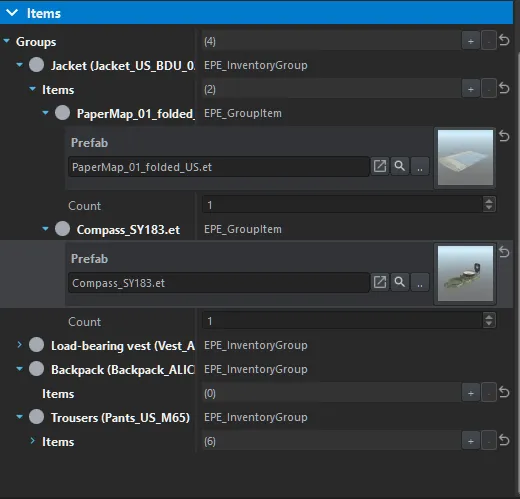
To move a thing from one container to another, delete its row in one group and add it in another — here the compass and the map moved from the trousers into the jacket.
How much fits
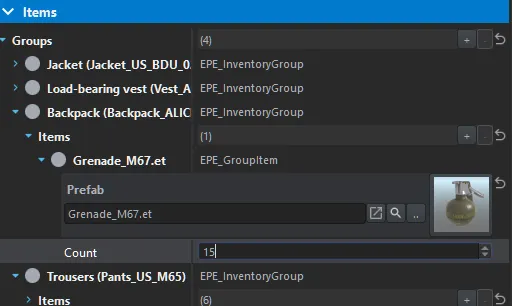
Section titled “How much fits”The tool adds up the volume of the items and the capacity of the containers, and complains in the Log Console when they do not add up. Fifteen grenades in a backpack, for instance:
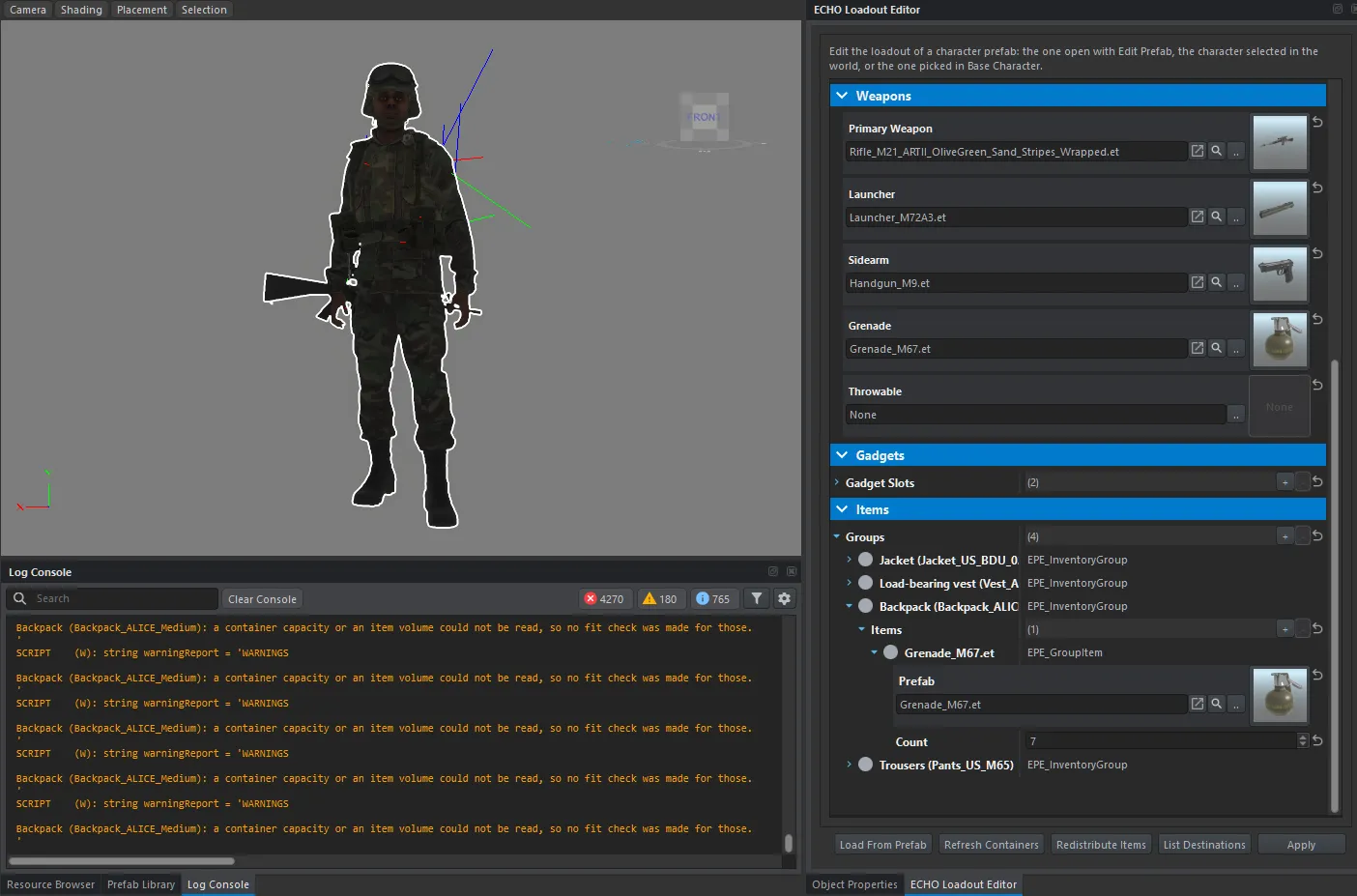
What the messages mean:
- over capacity — it does not fit. The items and the counts stay as you set them, but the game will not put all of it in the container. Lower the count until the warning is gone — seven grenades in the example;
- a container capacity or an item volume could not be read — the capacity or the volume could not be read, so no check was made. That is not a “does not fit”, but it is no promise either.
Applying
Section titled “Applying”Apply writes everything into the prefab and saves the file. The log gets an EPE: applied and saved … line, and the character in the editor changes clothes right away.
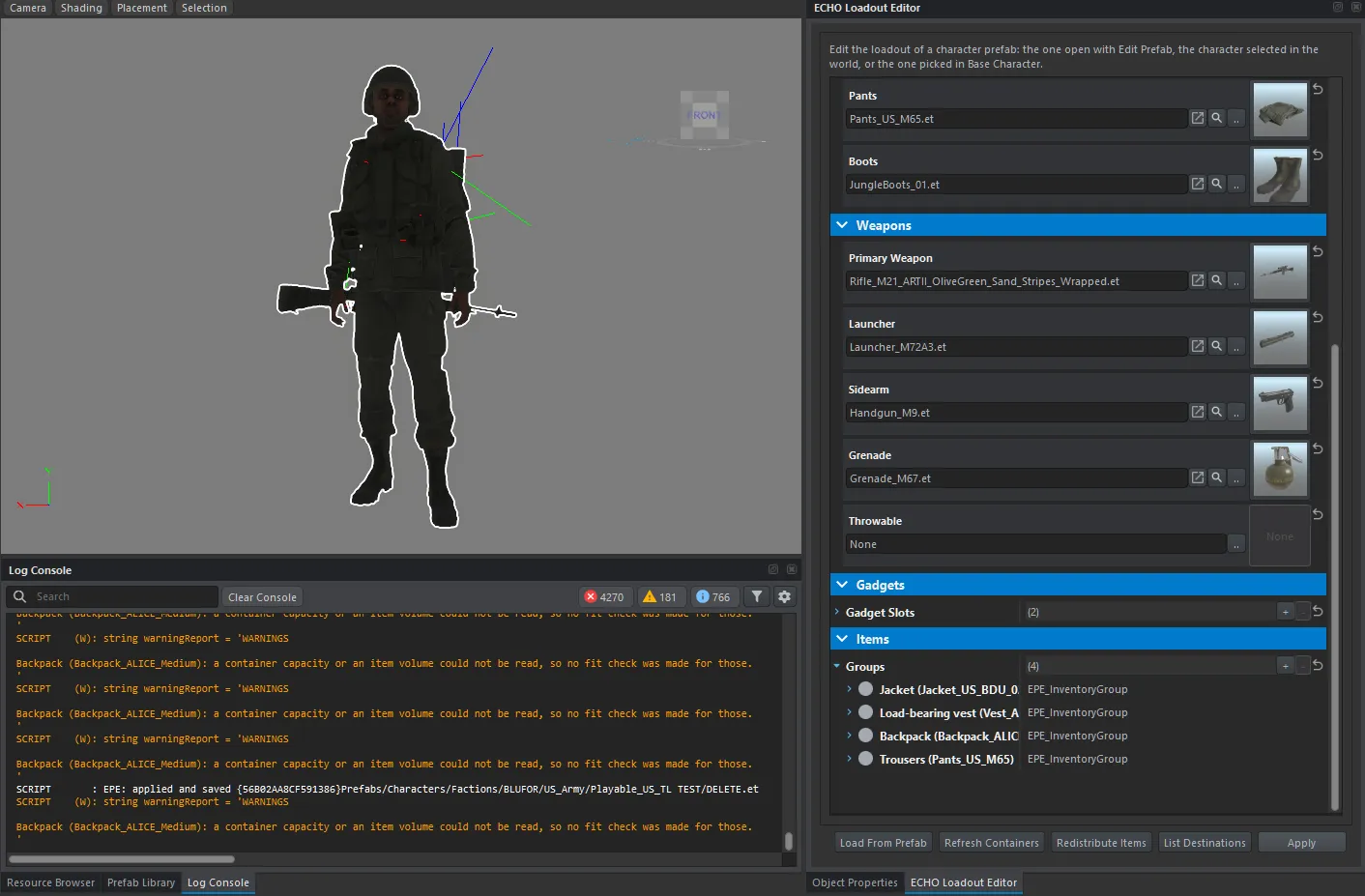
The other buttons:
| Button | What it does |
|---|---|
| Load From Prefab | re-reads the character and fills the fields again — anything unapplied in the panel is lost |
| Refresh Containers | rebuilds the item groups for the clothing selected right now. Needed after changing the vest, the backpack or the jacket |
| Redistribute Items | lays the items of each group out across its pockets again, by volume |
| List Destinations | opens a report: where everything lands, which slots the clothing, the weapons and the gadgets have, and what is inherited from the base prefab |
Editing in the world
Section titled “Editing in the world”Opening the prefab is not required. Place the character in the world, select it, fix the gear up, press Apply — the changes go into its prefab — and then remove the character from the world.
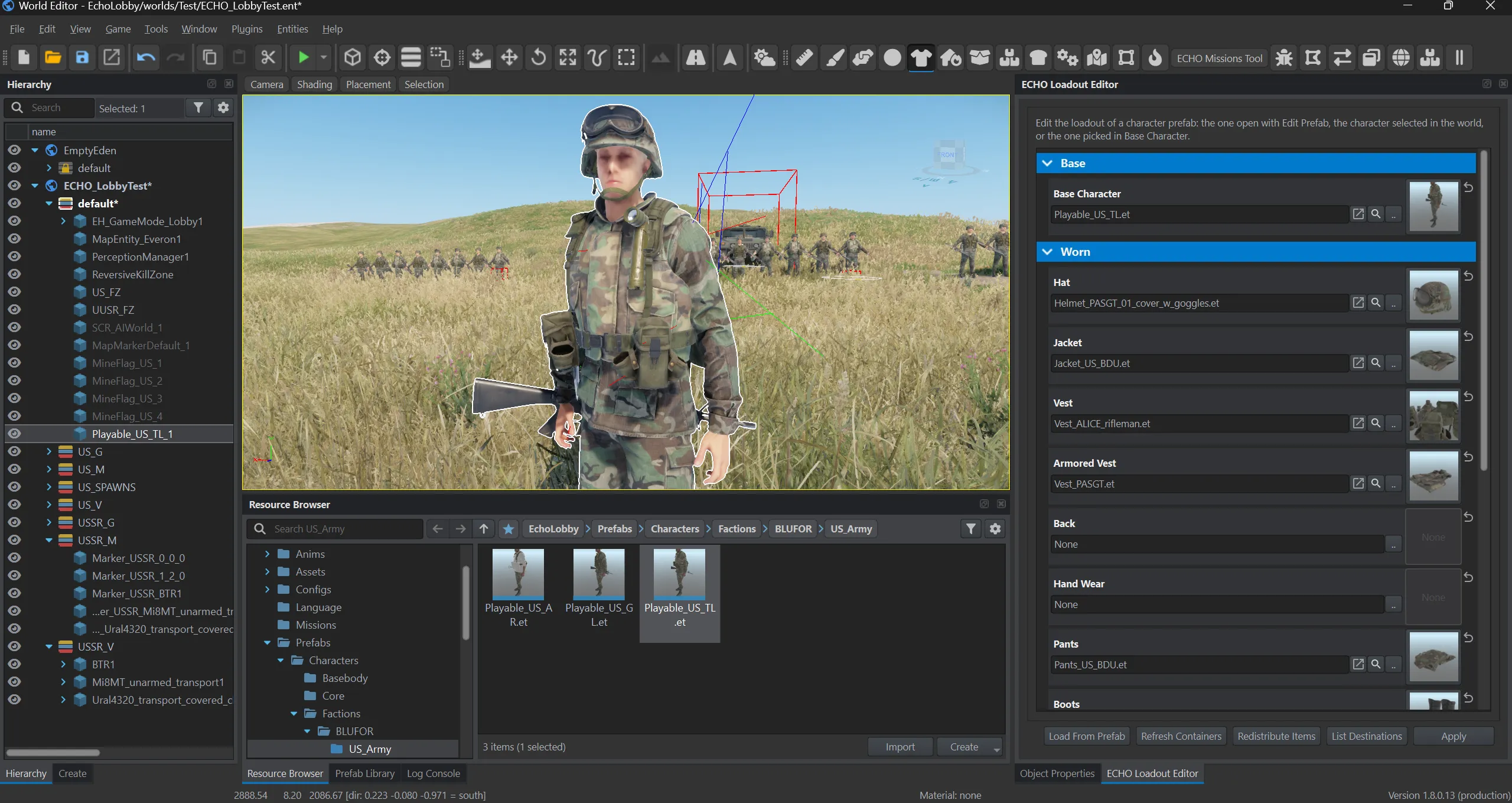
That way you see the result in a finished scene instead of the empty backdrop of prefab edit mode.
See also
Section titled “See also”- Your first mission, step by step — where characters become lobby slots
- Tools — the other World Editor tools
- Groups and slots